The province and its districts
The dashboard follows the real hierarchy: the province, its districts, their schools, and in each school its teachers and classes. The province and every district open on the same figures, so they can be compared at a glance.
The province
Section titled “The province”Overview, in the sidebar, is the page of the whole province. Province officials land on it when they sign in.
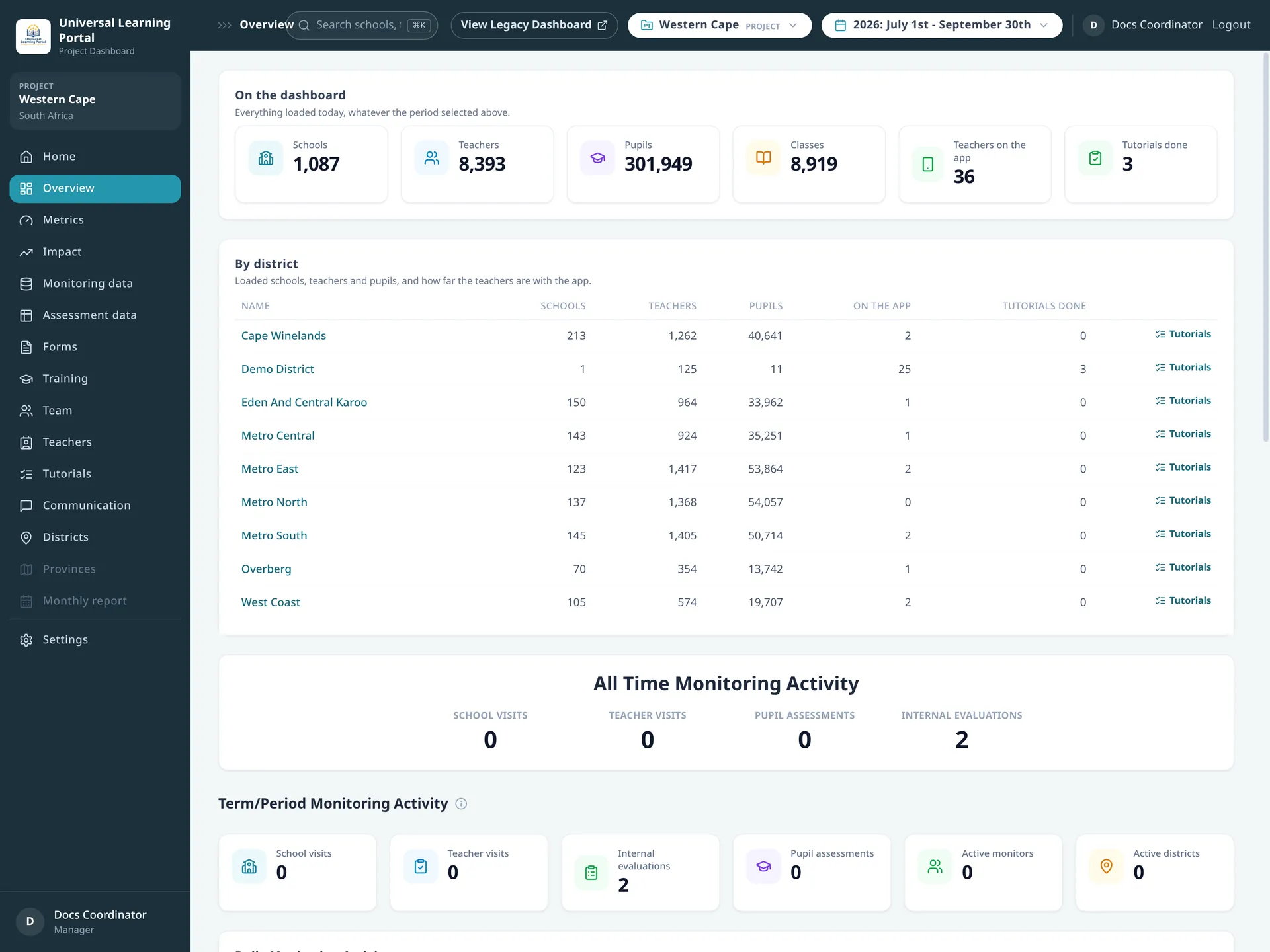
On the dashboard shows what is loaded today, whatever the period selected at the top:
| Figure | What it counts |
|---|---|
| Schools, Teachers, Pupils and Classes | Everything loaded in the province |
| Teachers on the app | Teachers who have signed in to the app and synced at least once |
| Tutorials done | Teachers who have finished the app tutorials |
By district gives the same figures for each district. The name of a district opens its page, and Tutorials, at the end of its row, opens its tutorial completion.
Under them, All Time Monitoring Activity and Term/Period Monitoring Activity count what has been recorded: school visits, teacher visits, pupil assessments and internal evaluations, which are the assessment rounds teachers run in the app. The second one follows the period selected in the header bar.
A district
Section titled “A district”A district’s page opens from By district, from Districts in the sidebar or from the search box. A district official lands on their own district when they sign in.
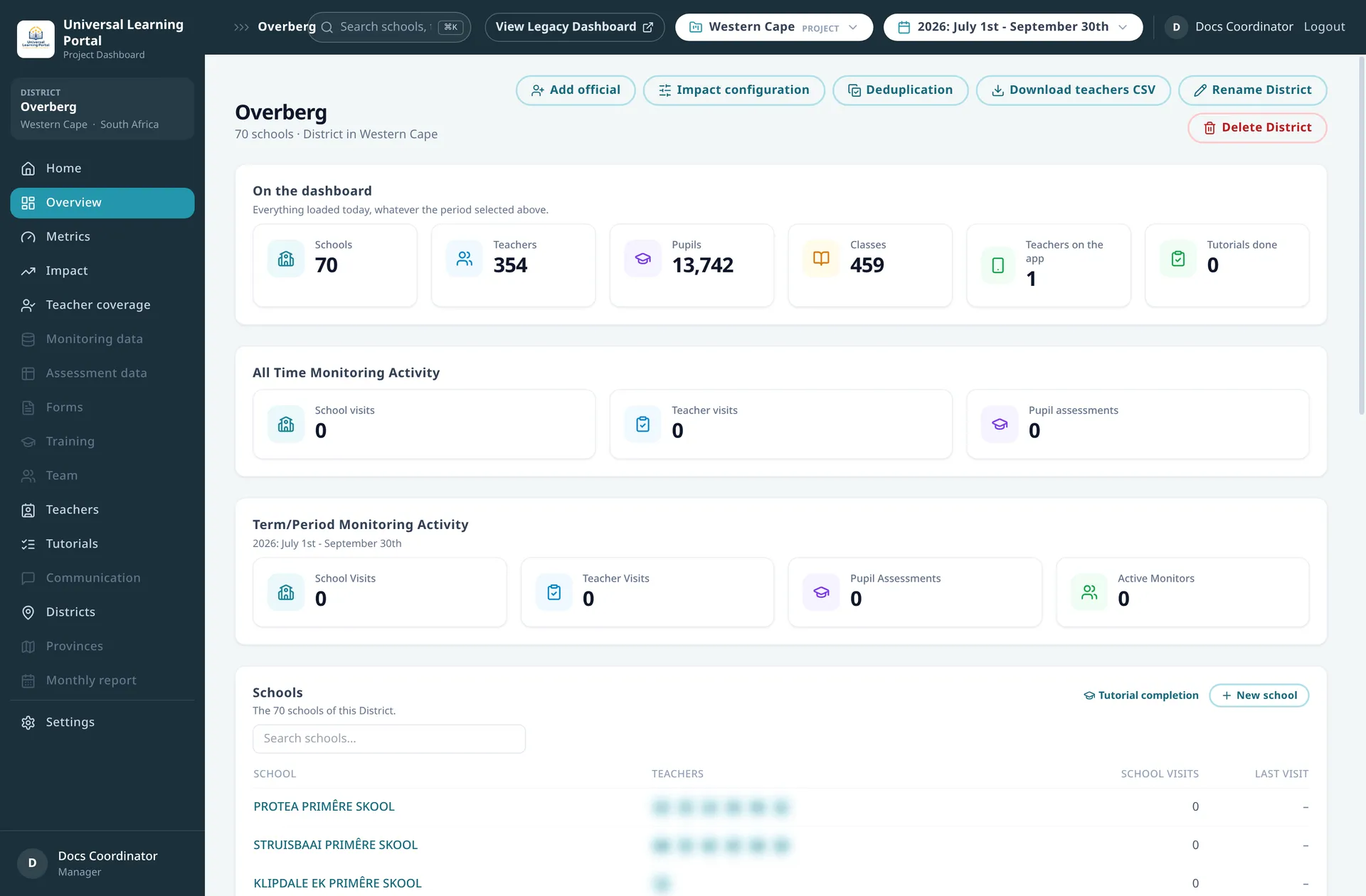
It starts with the same On the dashboard figures, for that district alone, followed by the two counts of monitoring activity.
Schools
Section titled “Schools”The Schools table lists the district’s schools:
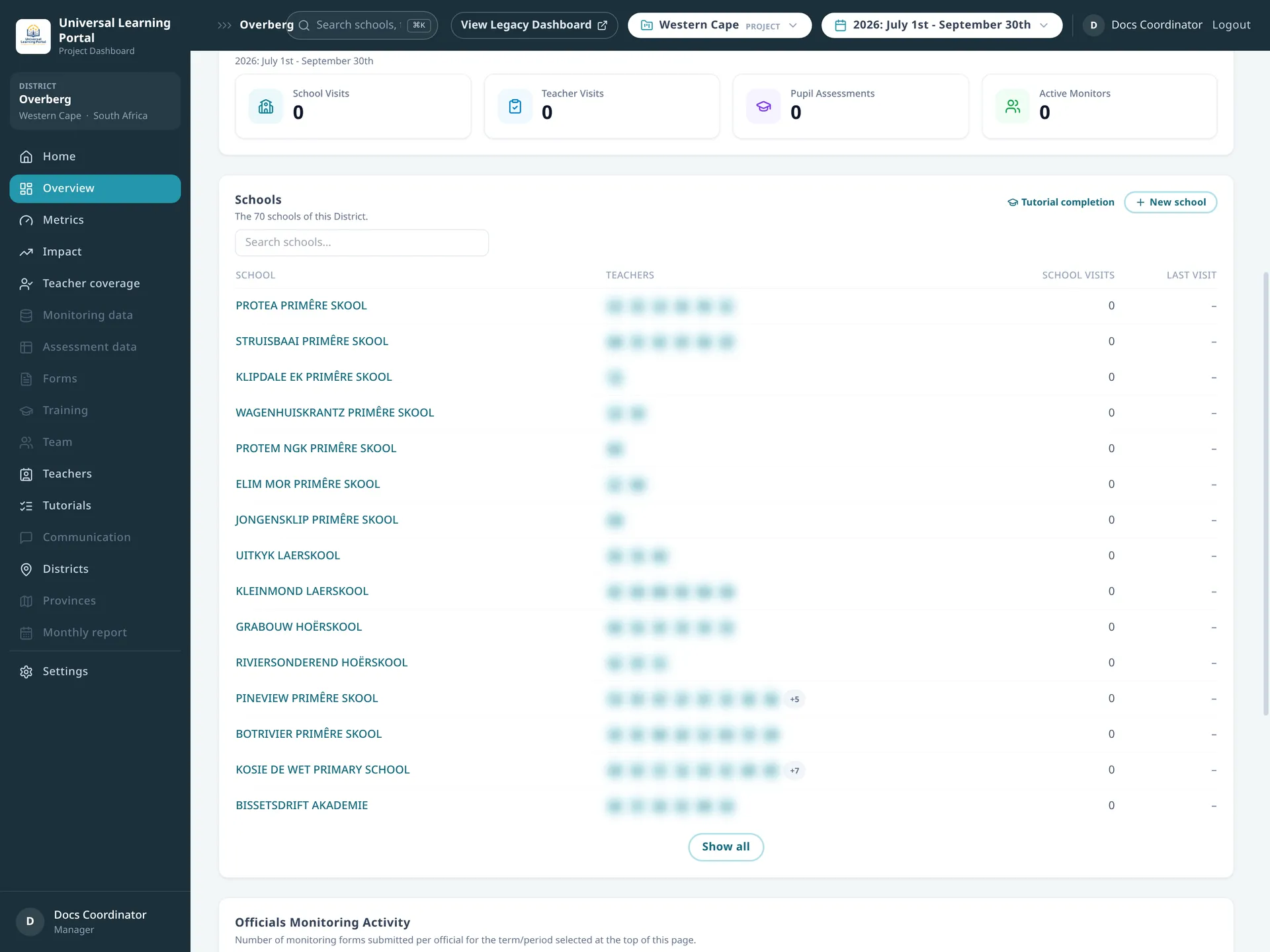
| Column | What it shows |
|---|---|
| School | The school, a link to its page |
| Teachers | The school’s teachers, as chips with their initials that link to each one (a +N button expands long lists) |
| School visits and Last visit | The visits recorded at the school |
The search box above the table finds a school by name, and Show all expands the shortened table. Tutorial completion opens the district’s tutorials page. New school, for managers, adds a school to the district.
The district’s own sections
Section titled “The district’s own sections”While a district is open, the sidebar carries the district’s own sections: Metrics, Impact and Teacher coverage, which lists the district’s teachers with and without a visit in the period.
The buttons at the top
Section titled “The buttons at the top”| Button | Who has it | What it does |
|---|---|---|
| Add official | Managers | Adds an official for this district. See Officials in Universal Learning Portal |
| Download teachers CSV | Senior managers and administrators | Downloads the district’s list of teachers as a file |
| Deduplication | Senior managers and administrators | Looks for schools and teachers recorded twice |
| Impact configuration, Rename District and Delete District | Administrators | Set up, rename or remove the district |
Officials see the page without these buttons.
Next: The School page