Logging in
You reach the dashboard at universallearningportal.com, in any modern web browser. The address opens on a welcome page: choose Log in there. If you open a dashboard page while signed out, you are sent to the sign-in screen first.
The login screen
Section titled “The login screen”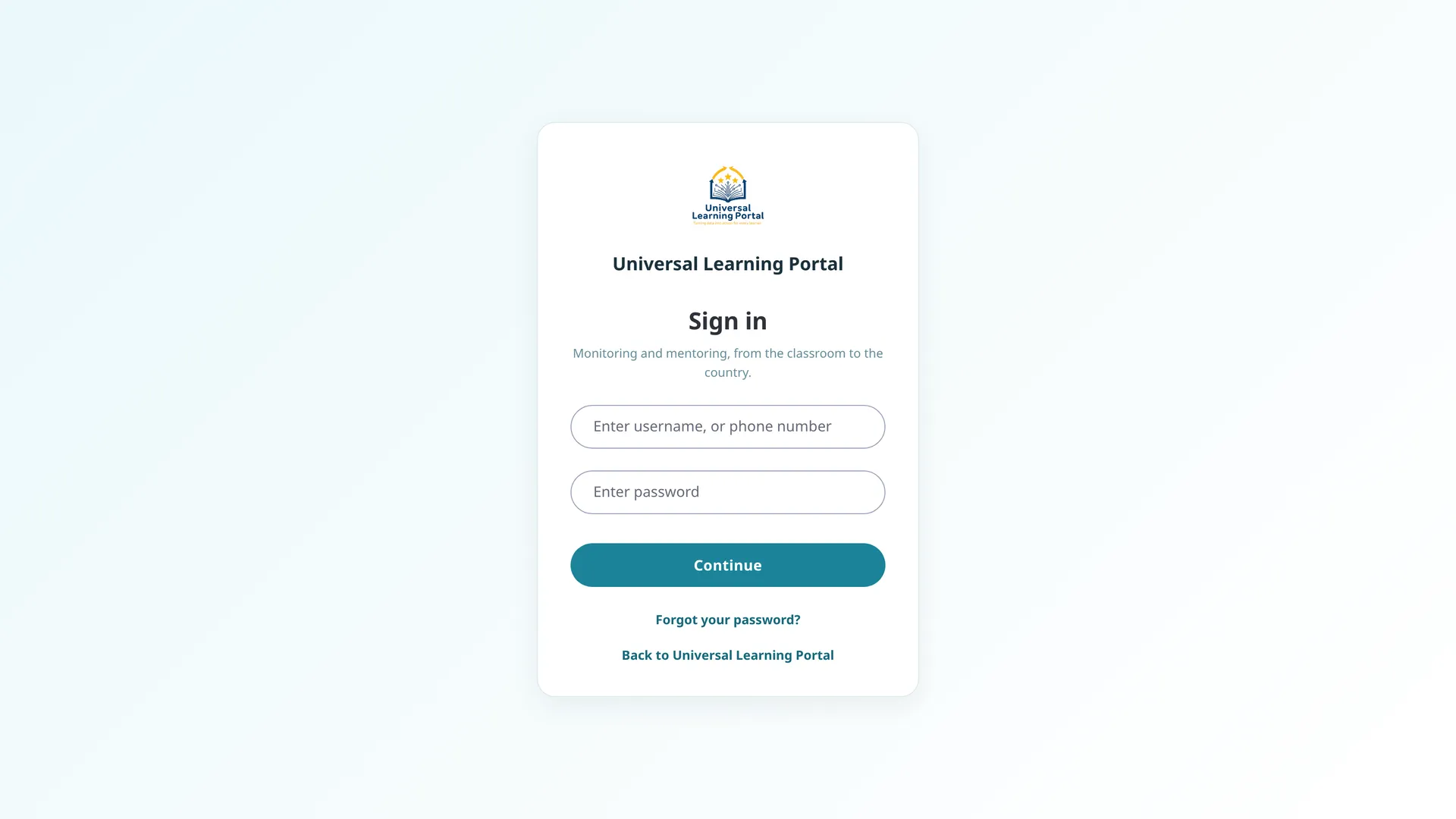
The screen is headed Sign in and shows a single form with two fields:
- Enter username, or phone number: type either your username, usually your email, or your registered phone number.
- Enter password
Then press Continue. Under the button, Forgot your password? is the way back in when you do not remember it.
Officials and teachers sign in with their email address and the password they chose from the link in their invitation, not with a PIN.
If sign-in fails
Section titled “If sign-in fails”- Wrong details: the message does not say which of the two was wrong, on purpose. Check both for typos.
- Account temporarily locked: five failed attempts in a row lock the account for fifteen minutes as a security measure. Wait for the lockout to pass and try again.
Forgot your password
Section titled “Forgot your password”Forgot your password? asks for the email address registered on your account and sends you a link.
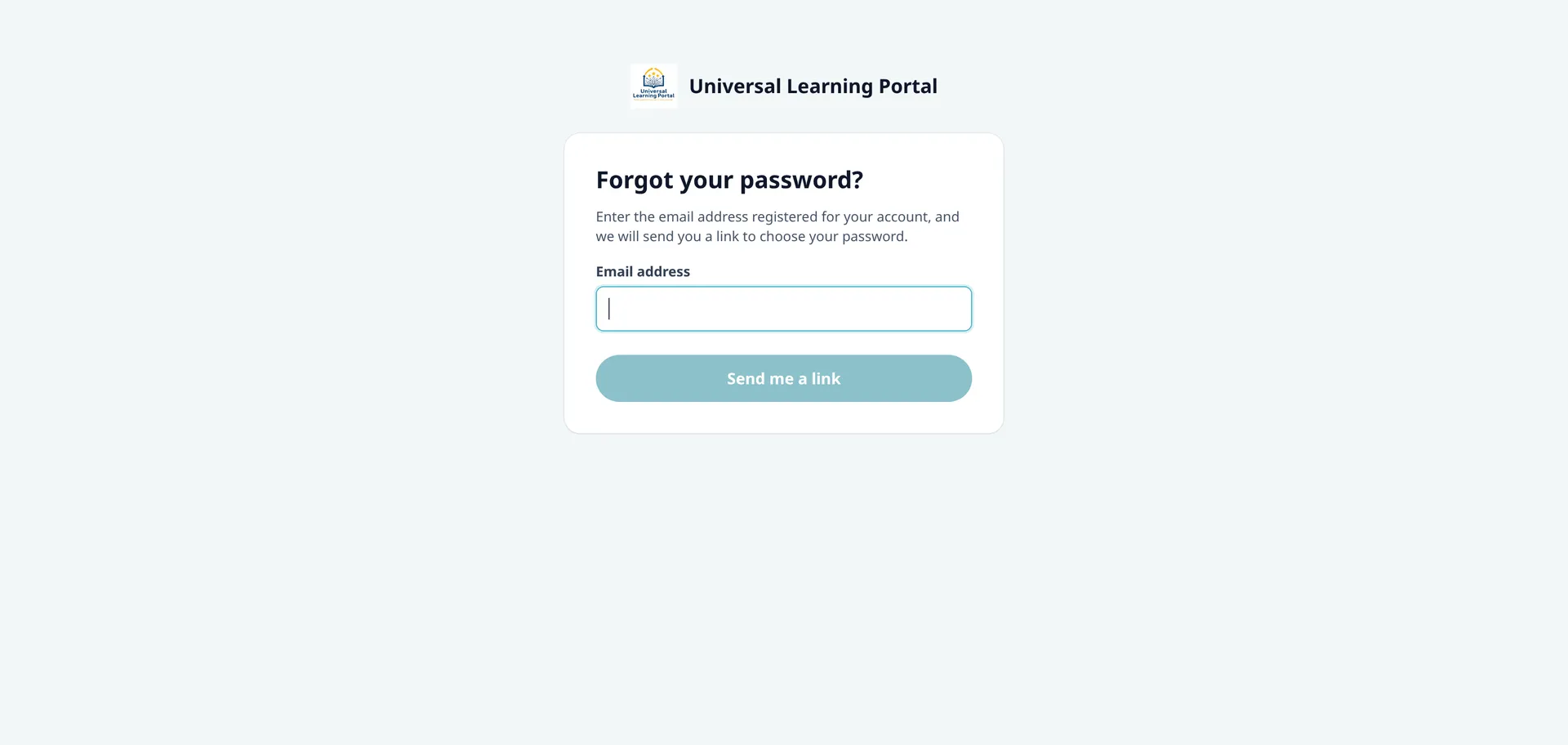
The page always answers the same way, whether or not the address is known, so it cannot be used to find out who has an account. If nothing arrives within a few minutes, check your spam folder, and check that the address is the one on your account.
The link in the email opens a page to choose the new password:
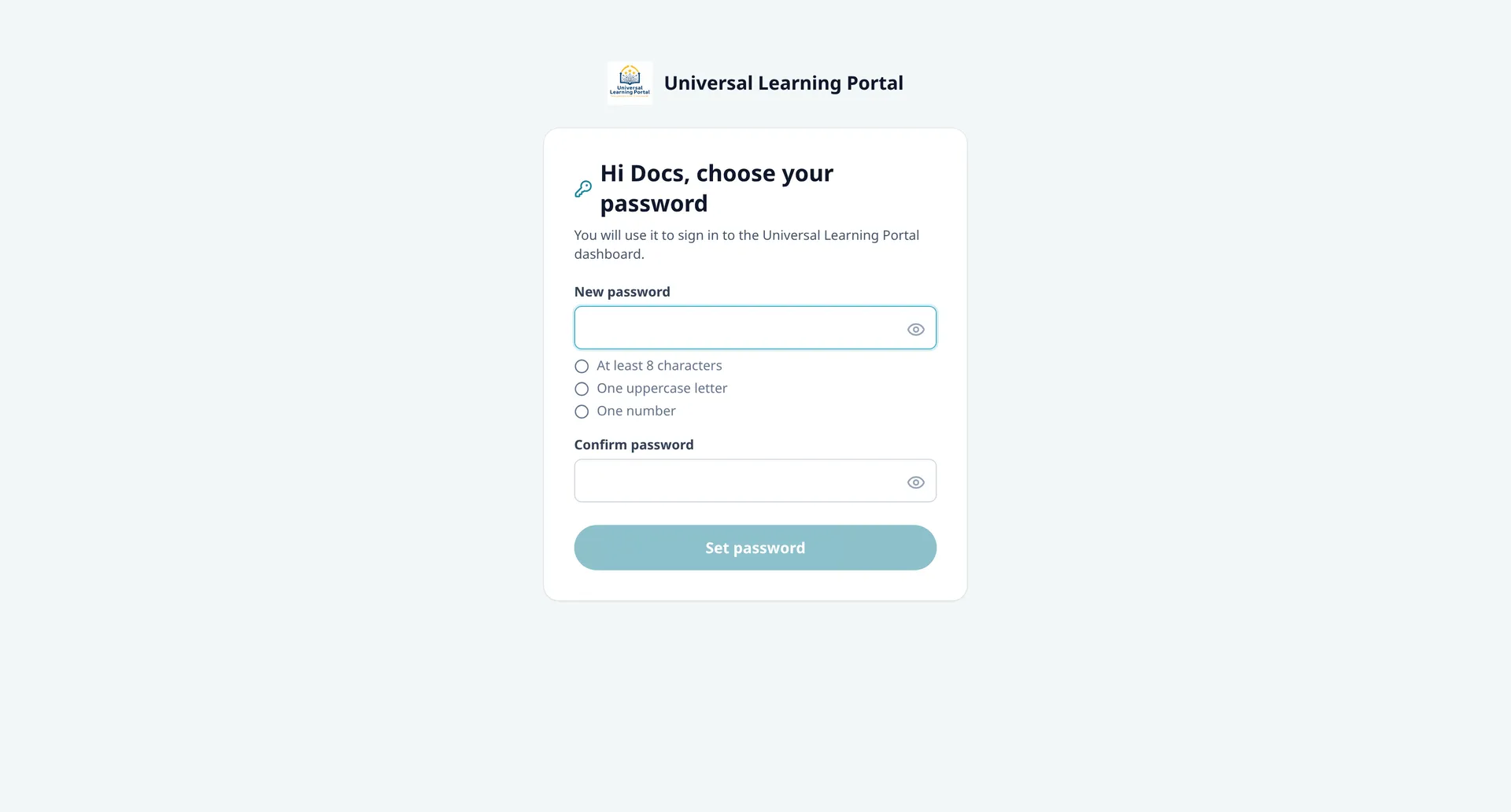
- The password needs at least 8 characters, one uppercase letter and one number. Each rule turns green as you meet it.
- The link works for 72 hours, and only once. An expired or used link opens the same page with the form to ask for a new one.
- If the same email address is on more than one account, each account gets its own email, and each email says which account it is for.
Where you land
Section titled “Where you land”After signing in, the dashboard takes you to the highest level you have access to:
| Your role | You land on |
|---|---|
| Administrator or manager | The organisation’s overview, or the country’s page for a manager whose projects are all in that country |
| Province official | The province’s Overview, with what is loaded in each district |
| District official | Your own district, or the list of your districts when you have several |
| Teacher | Your own classes |
A teacher’s dashboard is a small one, limited to their own classes. See The dashboard for teachers. What each kind of official sees is in Officials in Universal Learning Portal, and the pages they land on are described in The province and its districts.
Signing out
Section titled “Signing out”The Logout button is in the top right of every page, next to your name. Use it on shared computers when you are finished.
Next: Finding your way around